If you run an ISP and still have someone sitting at a desk manually disconnecting expired users every morning — this post is for you.
It's one of the most common operational problems small and mid-sized ISPs face. A subscriber's package expires at midnight. Nobody notices until 10 AM the next day. The customer used 10 extra hours of internet for free. Multiply that by 50 expired accounts a month and you're losing real money — not from network failure, but from a broken internal process.
The good news is this problem is completely solvable. And you don't need a large team or expensive infrastructure to fix it.
The Real Cost of Manual Expiry Management
Before getting into the solution, it's worth understanding exactly what manual expiry management costs you.
Lost revenue from grace usage When a package expires and nobody disconnects the user, they keep browsing. That's bandwidth you're paying for upstream that you're giving away for free. For an ISP with 500 active subscribers, even 5% expired-but-still-connected accounts at any time adds up fast.
Staff time wasted on repetitive tasks Checking expired accounts, logging into MikroTik, finding the active session, removing it, updating the CRM — a process that takes 3 to 5 minutes per user. If you're doing this 20 times a day, that's over an hour of skilled staff time spent on something a system should handle automatically.
Human error and inconsistency Manual processes break. Someone forgets. Someone disconnects the wrong user. Someone marks a subscriber as expired when they already renewed. These small mistakes damage customer trust and create billing disputes that are hard to resolve.
Customer dissatisfaction from delayed reconnection The flip side of late disconnection is late reconnection. A customer renews their package but nobody processes it for two hours. They call your support line angry. Your team scrambles. This happens every day in ISPs that rely on manual workflows.
All of these problems share the same root cause: humans in the loop where automation should be.
How Automated Package Expiry Actually Works
The technical foundation of ISP automation is RADIUS — the protocol your MikroTik router uses to authenticate subscribers and manage sessions. Most ISPs already have RADIUS running. What they're missing is a CRM layer that talks to RADIUS intelligently and triggers the right actions at the right time.
Here's the basic flow:
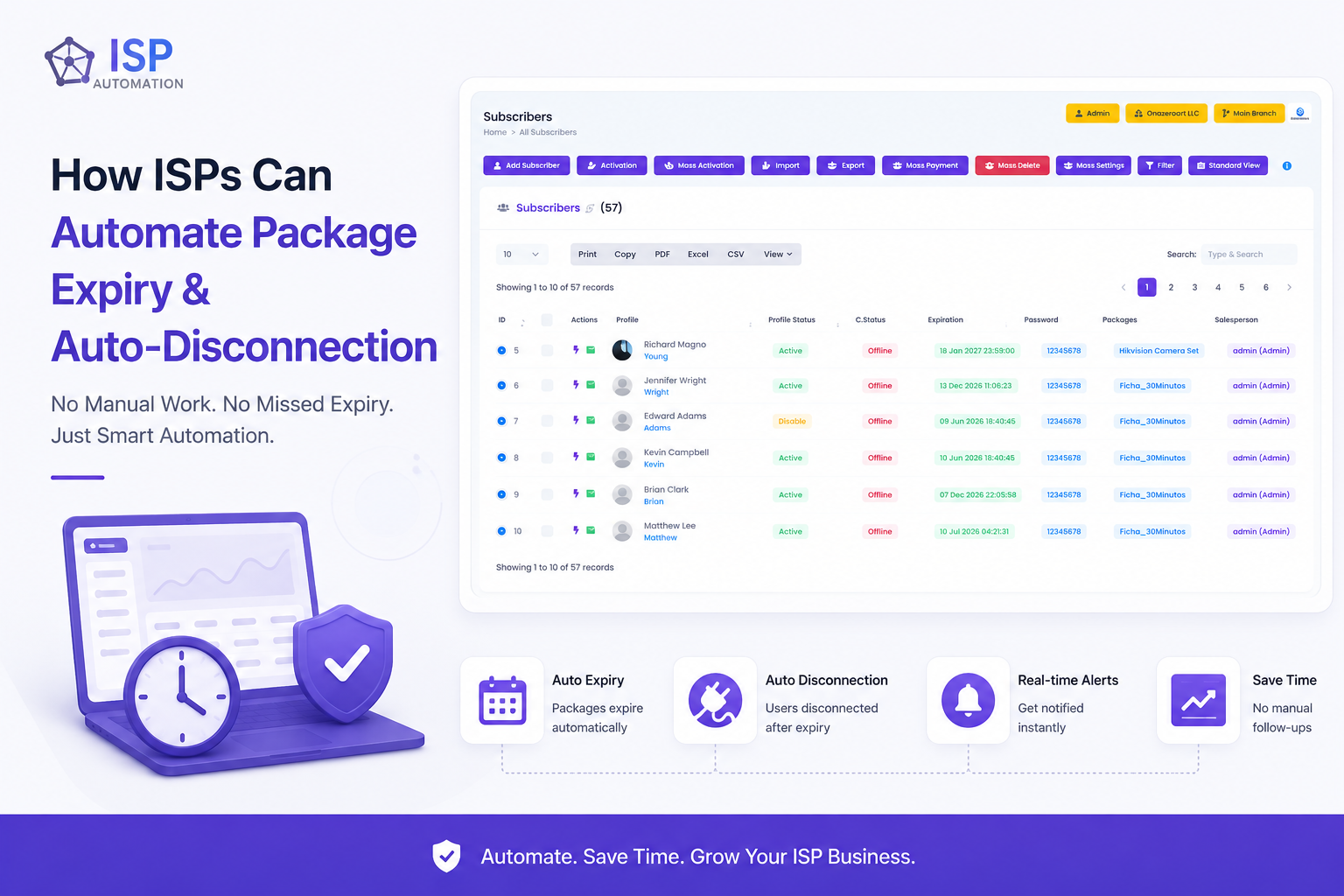
1. Package expiry is tracked in the CRM When a subscriber is assigned a package in Zal Ultra ISP CRM, the system records the start date, end date, and package details. The CRM constantly checks which packages are approaching expiry and which have already expired.
2. Pre-expiry notifications go out automatically Before the package expires — typically 3 days and 1 day before — the system sends automated SMS or notification alerts to the subscriber. No staff involvement needed. The customer is reminded, given a chance to renew, and the ISP looks professional doing it.
3. On expiry, a CoA disconnect is triggered CoA stands for Change of Authorization. It's a RADIUS feature that allows your CRM to send a disconnect command directly to the MikroTik router — without anyone logging into Winbox, without a script running manually, without a phone call to the NOC.
The moment a package hits its expiry timestamp, the CRM fires a CoA Disconnect Request to the router. The session is terminated. The subscriber sees a disconnection. If they try to reconnect, RADIUS rejects the authentication because the account is now expired.
4. After renewal, reconnection is instant When the subscriber pays and the package is renewed in the CRM — whether through an agent, a payment gateway, or a customer portal — the system updates the account status immediately. The next time the subscriber connects, RADIUS authenticates them normally. No manual session management needed.
This entire cycle runs without a single person touching it.
What You Need to Make This Work
You don't need to rebuild your network. If you're already running MikroTik with PPPoE and a RADIUS server, you have the foundation. What you need on top of that is:
A CRM with native RADIUS integration Not all ISP software handles CoA properly. Zal Ultra ISP CRM is built specifically for this — it maintains a live connection to your NAS devices and can issue CoA disconnect and re-authenticate commands in real time. The NAS configuration screen in Zal Ultra is where you register your MikroTik routers with their API credentials and incoming CoA port so the system knows exactly where to send disconnect commands.
RADIUS incoming enabled on MikroTik On your MikroTik router, RADIUS incoming must be enabled to accept CoA packets. This is a one-time configuration:
/radius incoming set accept=yes port=3799Once this is set, your CRM can send disconnect commands to that router any time it needs to.
Correct NAS registration in your CRM Your MikroTik's IP address, API port, API username, API password, and RADIUS secret must all be correctly entered in your CRM's NAS settings. A mismatch in any of these fields is the most common reason auto-disconnection fails silently — the CRM attempts the action, gets no response, and the subscriber stays connected.
SMS gateway integration for notifications Automated expiry reminders only work if messages actually reach subscribers. Zal Ultra supports SMS gateway integration so pre-expiry and post-expiry messages go out automatically based on the schedule you configure.
Setting Up the Automation: Step by Step
Step 1 — Register your MikroTik as a NAS in Zal Ultra Go to the NAS management section and add your router. Enter the NAS IP, RADIUS secret, API credentials, and CoA port. Save and verify the connection is active.
Step 2 — Enable RADIUS incoming on MikroTik Run the command above on every router that needs to receive CoA commands from your CRM. Verify with:
/radius incoming printConfirm accept: yes is showing.
Step 3 — Configure expiry automation rules in the CRM In Zal Ultra, set your automation preferences — how many days before expiry to send the first reminder, whether to send a final reminder on the expiry day, and whether to auto-disconnect immediately on expiry or after a short grace period.
Step 4 — Connect your SMS gateway Add your SMS gateway credentials so the system can send automated messages. Test with a real subscriber account before going live.
Step 5 — Test end to end Create a test subscriber with a package set to expire in 5 minutes. Watch the CRM trigger the disconnect automatically when the timer hits zero. Verify the MikroTik session drops. Renew the test package and verify the subscriber can reconnect without manual intervention.
Once the test passes, the automation runs for every subscriber on your network from that point forward.
Common Problems and How to Fix Them
Auto-disconnect fires but subscriber stays connected Root cause: CoA port 3799 is blocked by a firewall, or RADIUS incoming is not enabled on MikroTik. Fix: Run /radius incoming print and confirm accept=yes. Check firewall rules for port 3799.
CRM shows expired but MikroTik still authenticates the user Root cause: RADIUS secret mismatch between CRM NAS settings and MikroTik RADIUS server config. Fix: Compare the secret in Zal Ultra NAS settings with the secret in MikroTik /radius print. They must be identical.
SMS reminders not sending Root cause: SMS gateway credentials incorrect or gateway balance empty. Fix: Check gateway API credentials in CRM settings. Verify account balance with your SMS provider.
Subscriber renewed but still getting rejected on reconnect Root cause: CRM updated the account but CoA re-authentication packet was not sent, or MikroTik session cache is holding old state. Fix: Manually trigger a re-authentication from the CRM subscriber profile, or have the subscriber disconnect and reconnect after a 30-second wait.
The Difference It Makes in Practice
ISPs that move from manual to automated expiry management typically see three immediate changes.
First, revenue leakage stops. Expired subscribers are disconnected within seconds of expiry, not hours or days later. The gap between expiry and disconnection goes from hours to zero.
Second, staff capacity frees up. The team members who spent hours every day managing disconnections can now focus on new installations, customer support quality, and network maintenance — work that actually grows the business.
Third, customer experience improves. Subscribers get advance notice before their package expires. If they renew, they're reconnected instantly. If they don't, they're disconnected cleanly with a clear reason. No confusion, no billing disputes, no angry calls because "the internet stopped working and nobody told me."
That last point matters more than most ISP operators realize. A subscriber who receives a professional SMS reminder two days before expiry and gets reconnected the moment they pay is a subscriber who stays. A subscriber who gets disconnected without warning and has to call three times to get reconnected is a subscriber who starts looking for alternatives.
Automation is not just an operational improvement. It's a retention tool.
Final Thoughts
The technology to automate package expiry and disconnection has existed for years. RADIUS CoA is a standard protocol. ISP CRMs that support it properly are available and affordable. The only reason most small ISPs haven't made the switch yet is that they're used to doing things manually — and nobody has shown them a clear path to change that.
If you're running MikroTik with PPPoE and RADIUS, you're already 80% of the way there. The remaining 20% is getting the right CRM in place, registering your routers correctly, and running one end-to-end test.
After that, the system handles it. Every expiry. Every disconnection. Every reminder. Without anyone lifting a finger.
Want to see how Zal Ultra ISP CRM handles automated package expiry and CoA disconnection for your network? Contact us on WhatsApp: +880 1836 216648 or reach us on Teams at onezeroart.