How to Send MikroTik Logs to ABC Syslog Server — Complete Setup Guide
Here's something most ISP operators find out the hard way.
A subscriber calls and says their connection dropped three times last night. You open your MikroTik router's log — and everything from last night is gone. The buffer filled up hours ago. You have no timestamps, no disconnect reason, no record of what happened. You're stuck guessing.
This is the default MikroTik logging situation. Everything gets written to memory, the buffer fills, old entries disappear. For a home user that's fine. For an ISP managing dozens of routers and hundreds of subscribers, it's a real operational problem.
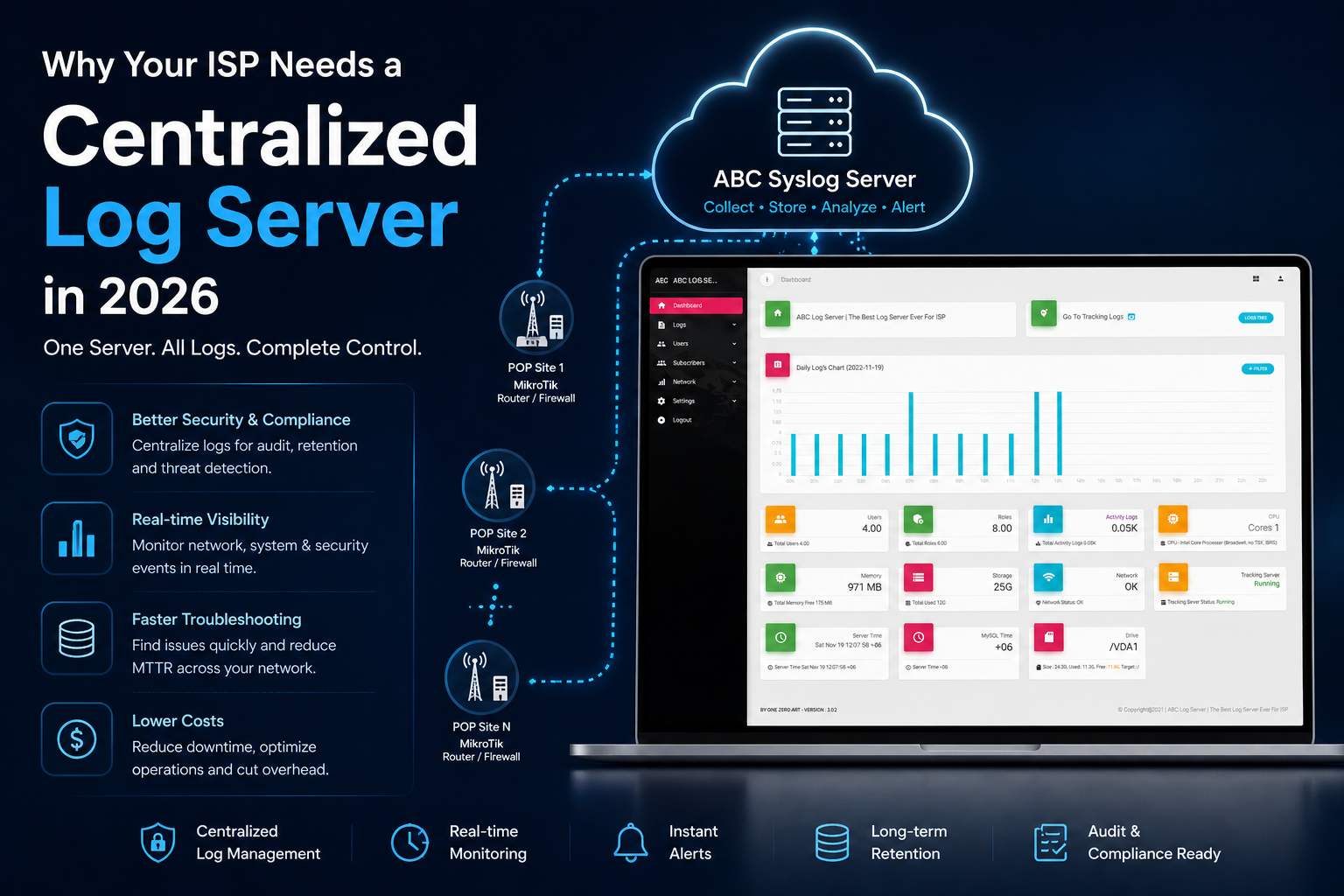
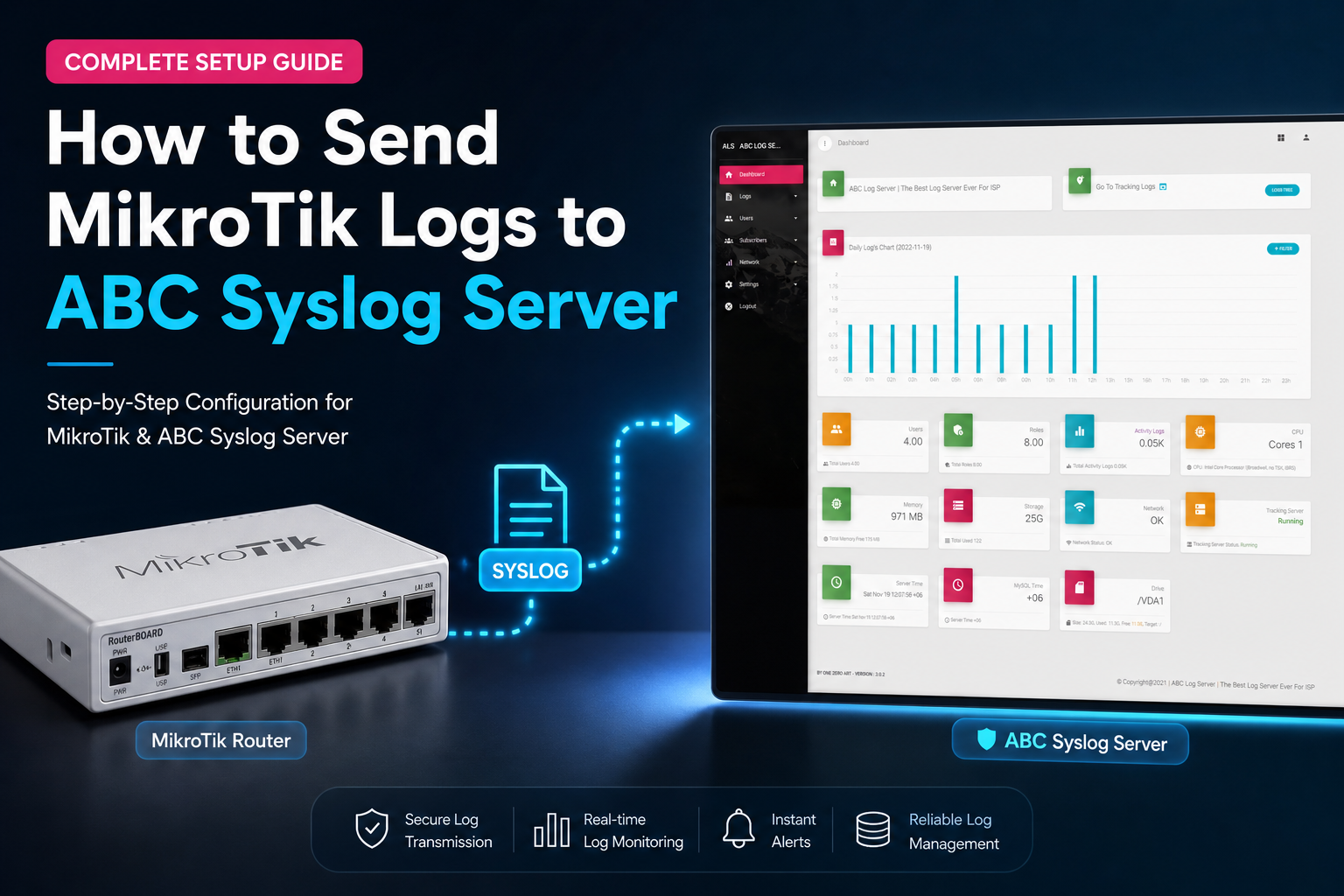
ABC Syslog Server fixes this by receiving your MikroTik logs the moment they're generated and storing them permanently on your server — organized by host IP and date, searchable in seconds. This guide walks you through exactly how to set it up.
Before You Start
You need two things already in place:
ABC Syslog Server installed and running — this is done by the Onezeroart support team on your server. If you haven't purchased and had it installed yet, that's the first step.
MikroTik router access — Winbox or SSH, either works. The configuration is done entirely from the MikroTik side once ABC Syslog is running on your server.
Note your ABC Syslog Server's IP address before starting. You'll need it when configuring MikroTik.
Step 1 — Add Your MikroTik as a NAS in ABC Syslog
Log into your ABC Syslog dashboard. Go to Network → NAS.
Click Add NAS and fill in the details:
| Field | What to Enter |
|---|---|
| Server Type | Select the appropriate type (e.g., RADIUS or your router type) |
| IP | Your MikroTik router's IP address |
| Name | A label you'll recognize — e.g., Core-Router-01 |
| Note | Optional — add location or any relevant detail |
| API Status | Enable if you want API-based monitoring |
| Notify Status | Enable to receive alerts when this device stops sending logs |
| Notify Type | Select Email or SMS based on your preference |
| Notify Duration | Set how frequently you want to be notified (in minutes) |
Save the NAS entry. This registers your router in ABC Syslog so incoming logs from that IP are properly identified and labeled in the dashboard.
Step 2 — Configure MikroTik Firewall Rules
This is the core part. ABC Syslog captures tracking logs from MikroTik — meaning connection data including source IP, destination IP, ports, and MAC addresses. To enable this, you need to add specific firewall rules in MikroTik.
Open Winbox → IP → Firewall.
Follow the exact configuration shown in the ABC Syslog documentation screenshots. The rules need to be set up in the correct order to capture the right traffic and forward it to your syslog server's IP.
The documentation at docs.onezeroart.com/abc/logs/log_in_mk.html has step-by-step screenshots (5 screens) showing the exact firewall rule setup. Work through each screenshot in sequence — the Onezeroart support team can also walk you through this if needed.
Step 3 — Configure MikroTik Logging Rules
After the firewall rules, set up the remote logging action in MikroTik.
Go to System → Logging → Actions tab.
Add a new action pointing to your ABC Syslog Server IP. Then go to the Rules tab and add rules for the topics you want to forward remotely — at minimum info, warning, error, critical, and firewall.
This ensures MikroTik sends log entries to ABC Syslog in real time as events happen, rather than only storing them locally in the memory buffer.
Step 4 — Verify Logs Are Arriving
Once both the firewall rules and logging rules are configured, go back to your ABC Syslog dashboard.
Navigate to Logs → Tracking Logs.
You should start seeing entries appearing with the following details for each log line:
- Datetime — exact timestamp of the event
- Host — which router it came from
- Username — if applicable
- MAC Address — the device that generated the traffic
- Source IP and Port
- Destination IP and Port
- IPv6 Address — if your network uses it
If logs are appearing here, the setup is complete and working.
Step 5 — Use the Filter to Find What You Need
This is where ABC Syslog becomes genuinely useful for daily ISP operations.
Go to Logs → Tracking Logs → Filter.
You can narrow down logs by:
- Year / Month / Day / Hour — isolate a specific time window
- Source IP — find all traffic from a specific subscriber or device
- Source Port — filter by the port traffic originated from
- Destination IP — see what a device was connecting to
- Destination Port — useful for identifying specific services or protocols
Once filtered, you can download the results in multiple formats — zip, unzip, gz, gunzip — depending on your preference or what your analysis tools require. You can also view file information, download specific log files, delete old entries, or search within results directly from the filter interface.
For a subscriber dispute, filter by their IP and a date range. You'll see every connection event for that period — timestamped, with source and destination details. That's the data you need.
Step 6 — Repeat for Every MikroTik in Your Network
Go back to Network → NAS and add each additional MikroTik router following the same process. Then configure the logging rules on each router pointing to the same ABC Syslog Server IP.
Once all routers are added, every log entry from every device flows into one dashboard. Searching across your entire network infrastructure takes the same amount of time as searching one router — seconds.
What the Dashboard Tells You
Beyond individual log searches, ABC Syslog's Dashboard gives you a running overview of log activity, storage usage, and system health — SSD and HDD space, server resource usage, and which NAS devices are actively sending logs.
The Activity Logs section separately tracks everything done inside the ABC Syslog admin panel — who logged in, what was changed, when. This gives you a full audit trail of your team's actions alongside the network log data.
A Note on Storage
Tracking logs from an active ISP network accumulate quickly. ABC Syslog stores everything directly on your server's file system — not in a database — which means it handles high volume without performance issues. As your log volume grows, you can attach additional HDDs to expand storage capacity.
The Server page in Settings → Server shows you real-time storage capacity, memory usage, CPU performance, and the status of your tracking server and cron jobs — so you always know the health of your logging infrastructure at a glance.
Summary
The MikroTik configuration comes down to two things: firewall rules to capture the right traffic, and logging rules to forward events to your ABC Syslog Server. Once that's in place, every log entry leaves the router immediately and is stored permanently — organized by host and date, filterable by IP, port, and time window, downloadable in multiple formats.
The ISPs who set this up properly stop having conversations where they say "I don't know what happened." They pull up the filter, enter the IP, pick the date, and have the answer in seconds.
If you run into anything during setup, the Onezeroart support team handles installation and can assist with the MikroTik configuration. Reach them on WhatsApp at +880 1836 216648 or via Skype at onezeroart.
Frequently Asked Questions
Does ABC Syslog work with all MikroTik RouterOS versions? Yes. The firewall and logging rule setup is compatible with both RouterOS 6.x and 7.x without any additional packages.
Can I connect multiple MikroTik routers to one ABC Syslog instance? Yes. Add each router as a separate NAS entry and configure logging rules on each device. There is no limit on the number of connected routers.
Who installs ABC Syslog Server? Installation is handled by the Onezeroart support team. You do not receive raw files or an ISO — the team installs it directly on your server. Contact them via WhatsApp or Skype to get started.
What happens to logs if my ABC Syslog server goes offline briefly? Log entries generated during that period will not be recovered — MikroTik does not queue and retry undelivered syslog data. Keeping your syslog server on a stable VPS or dedicated server with reliable uptime is recommended.
Can I search logs by subscriber name? If you've added subscriber records under Subscribers → Subscriber in ABC Syslog and linked them to their IP, you can associate logs with specific clients. This makes customer-level troubleshooting significantly faster.
Published by the Onezeroart LLC Team | Log Management & Syslog Category © 2026 Onezeroart LLC. All rights reserved.